Home
How to Use PayByPhone to Pay for Parking and Solve Common App Problems
To pay for parking with PayByPhone, enter the 4-5 digit location code found on nearby signage into the app or mobile website, select your duration, and confirm payment. If the app freezes, use the mobile web portal at paybyphone.com as a reliable workaround. Always verify your license plate and zone number to avoid citations.
As urban centers become increasingly digitized, the traditional coin-operated parking meter is rapidly becoming a relic of the past. PayByPhone stands as a prominent leader in this transition, operating in over 1,300 locations across North America and Europe. With a user base exceeding 125 million people, it has established itself as a top-tier choice for contactless parking payments.
While the service offers significant convenience, users often encounter technical hurdles, regional feature variations, and security risks like "quishing" (QR code phishing). This guide provides a deep dive into maximizing the platform's utility, from 30-second rapid payments to advanced troubleshooting for persistent app bugs.
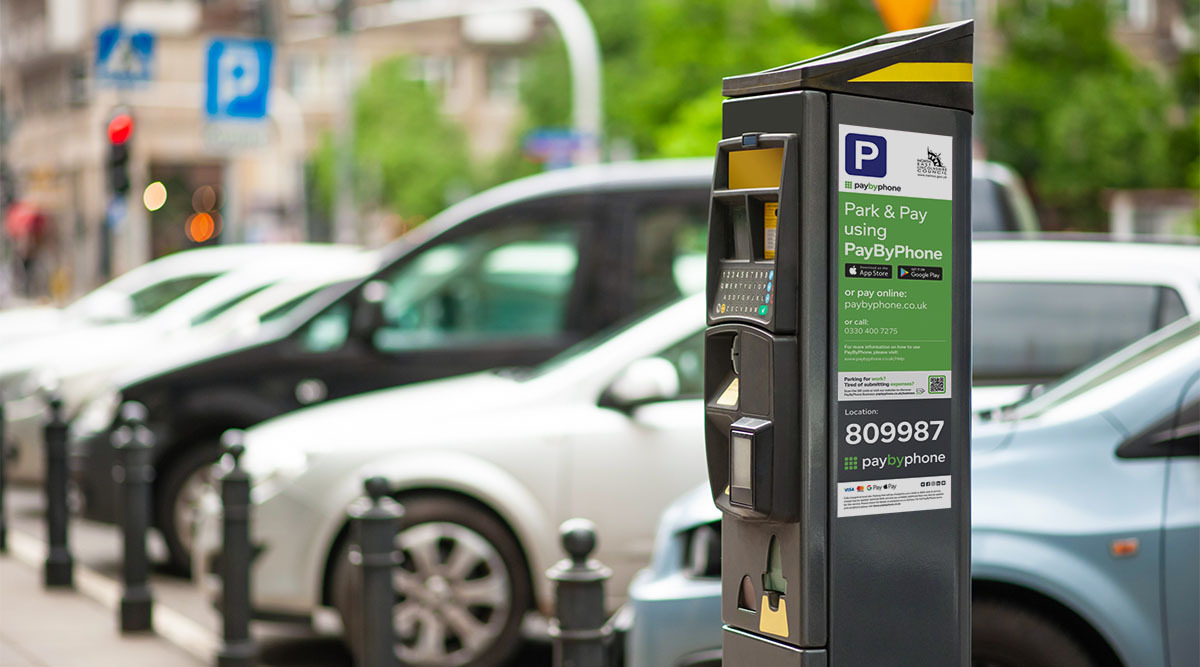
Image source: PayByPhone
How to Pay for Parking in Under 30 Seconds Using the App
The primary way to interact with the service is through the dedicated mobile application, available for both iOS and Android. According to official data, the registration process is designed to be completed in less than 30 seconds, making it a highly efficient option for drivers on the move.
Setting Up Your Account for the First Time
Starting Your First Parking Session
Once your account is active, starting a session is straightforward. Look for the green and white PayByPhone signs or decals on the parking meter. These will display a 4-5 digit location code unique to that specific block or lot.
- Open the app and enter the Location Code .
- Select the Duration you wish to stay.
- Review the total cost, including any local convenience fees.
- Tap Confirm to start your session.
One of the most significant advantages of this system is that you do not need to display a physical receipt on your dashboard. Parking enforcement officers use handheld devices to scan license plates and verify active sessions in the real-time database.
Extending Your Time Remotely
The app provides a distinct advantage over traditional meters: the ability to add time without returning to your car. Users can enable push notifications to receive a warning when their session is about to expire. For Apple Watch users, the "2-tap extension" allows you to add time directly from your wrist, provided you have saved the location as a "Favourite" in the smartphone app.
How to Pay for Parking Without Downloading the App
Not every user wants to install a 130 MB application for a one-time parking session. Fortunately, there are several "no-app" alternatives that provide similar functionality without the storage or privacy overhead.
Mobile Web Portal
Privacy-conscious users or those using alternative operating systems (like GrapheneOS) often prefer the mobile web version. By visiting paybyphone.com in a mobile browser, you can access nearly all app features, including session extensions and receipts, without a permanent installation.
Guest Accounts
If you are in a hurry, you can pay via a Guest Account. This allows for immediate payment without a full registration. However, be aware that you will lose access to your parking history and will not be able to easily retrieve receipts for expense reporting later.
The Text-to-Pay and SMS Syntax Guide
In certain regions, SMS payments offer a reliable fallback when mobile data signals are weak. This is particularly popular in the UK and specific US cities like Seattle.
-
United Kingdom:
Use the syntax
[Location] [Duration] [CVV]. For example, texting12345 1h 111to the local number will initiate a one-hour session. - Seattle, WA: The city utilizes a dedicated shortcode (77447). Drivers can text "PARK" to this number to begin the automated payment flow.
Traditional Phone Call Payments
For those who prefer voice interaction, every PayByPhone location includes an automated phone number on the signage. By calling this number, you can follow voice prompts to enter your location code, duration, and CVV. This remains a vital accessibility feature for users without smartphones.
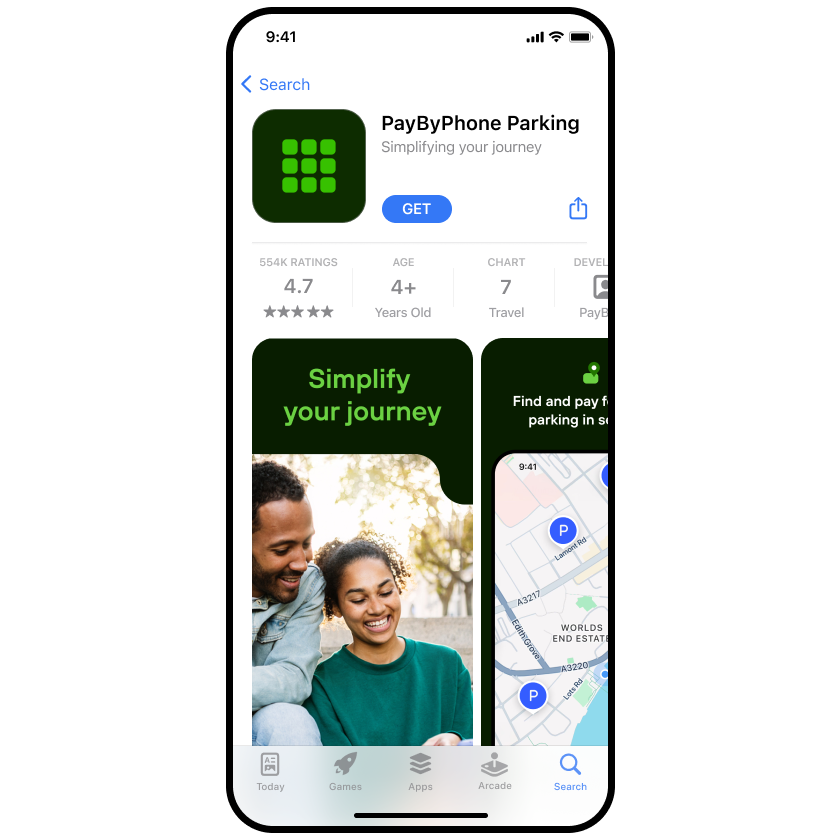
Image source: PayByPhone
How Regional Features Differ Across the UK, Canada, and the US
PayByPhone is not a monolithic experience; the features available to you depend heavily on your geographic location. Understanding these differences can help you save money and access specialized services.
United Kingdom: Beyond Just Parking
In the UK, the app has evolved into a broader mobility tool. It provides access to a network of over 19,000 EV charging stations, allowing drivers to manage both parking and charging in a single interface. Additionally, the UK version often includes a fuel price tracker, helping users locate the most cost-effective petrol stations in their immediate vicinity.
Canada: The "Park Until" Feature
Canadian users have access to a unique "Park Until" feature. Unlike the standard "Duration" model where you select hours and minutes, "Park Until" allows you to choose a specific time of day (e.g., 5:30 PM) for your session to end. This is widely regarded as a more intuitive way to manage schedules for business meetings or dinner reservations.
United States: Specialized Zones and Privacy
In the US, cities like Seattle have integrated specialized Commercial Vehicle Load Zones (CVLZ) into the app, allowing delivery drivers to pay for short-term loading access. However, users should be mindful of local regulations. For instance, the Miami Parking Authority notes that information submitted via the app may be subject to public records disclosure laws, a critical consideration for privacy-conscious drivers.
How to Fix Common PayByPhone App Errors and Freezes
Despite its widespread use, the app is not immune to technical glitches. Community feedback and technical forums have identified several recurring issues that official documentation may not fully address.
Fixing the "Background Freeze" on Android
A common issue for Android users involves the app hanging on the initial splash screen (usually an image of a building or car). This is often related to security sandboxing on newer versions of Android. A known community fix is to navigate to the app's settings and enable "Exploit protection compatibility mode." This allows the app to bypass certain memory allocation checks that cause the freeze.
Solving the Location Loop Bug
Some users report a "Location Loop" where the app requests GPS permission every 10 seconds, even after it has been granted. If a standard restart doesn't work, the most effective workaround is to perform a "Hard Refresh" by clearing the app's cache in your phone's storage settings. If the problem persists, switching to the mobile web portal is the recommended alternative to ensure you don't receive a ticket while troubleshooting.
License Plate Nuances
Entering your license plate correctly is the most critical step in avoiding a citation. For specialty plates, such as University or Veteran plates, Seattle.gov advises users to enter only the alphanumeric characters and omit any symbols or small vertical text. For example, a plate with a vertical "WA" should be entered as "ABC1234" rather than "WAABC1234".
Image source: Google Play
How to Stay Safe from Parking Scams and Fake QR Codes
As mobile payments grow, so do the tactics of scammers. "Quishing"—the use of fraudulent QR codes—has become a significant threat in major metropolitan areas.
Identifying Search Engine Deception
Scammers often purchase "Sponsored" links on Google for the keyword "PayByPhone." These fake sites mimic the official login portal to capture user credentials and payment data. To stay safe, always type
paybyphone.com
directly into your browser or use the official app downloaded from a verified store. Never click the first result in a search engine without verifying the URL.
-
Verify the URL:
Ensure you are on
paybyphone.comor a local official subdomain. - Inspect Decals: Official decals are usually professionally printed and integrated into the meter; scams are often stickers placed over the original.
- Avoid QR Codes: When in doubt, manually enter the location code into the app rather than scanning.
What Are the Fees and Payment Methods?
The cost of using PayByPhone typically includes the standard parking rate set by the city plus a "convenience fee." These fees cover the cost of the mobile infrastructure and the convenience of remote management.
| City/Region | Typical Convenience Fee | Primary Payment Methods |
|---|---|---|
| Seattle, WA | $0.35 - $0.45 | Visa, MC, Amex, Apple Pay |
| Miami, FL | $0.30 - $0.35 | Visa, MC, PayPal |
| London, UK | £0.10 - £0.20 | Visa, MC, Google Pay |
| Vancouver, BC | $0.25 - $0.40 | Visa, MC, Amex |
According to Wikipedia , the technology behind these apps can reduce urban traffic congestion by 28% to 45% by helping drivers find and pay for spots more efficiently. While the convenience fee is an added cost, many drivers find it a worthwhile trade-off for the ability to avoid parking fines through remote extensions.
The Bottom Line
PayByPhone is a premier solution for modern urban parking, offering a blend of speed and flexibility that traditional meters cannot match. To ensure a smooth experience, keep these key takeaways in mind:
- Always double-check the location code and your active license plate before confirming payment.
- Use the mobile web portal as a reliable fallback if the app freezes or fails to load.
- Enable push notifications to receive expiration alerts and avoid costly parking tickets.
- Never scan QR codes on meters; manually enter the zone number to stay safe from scams.
- Leverage regional features like the UK's EV charging maps or Canada's "Park Until" settings.
- Dispute tickets immediately using the "Recent Sessions" tab in the app as your digital receipt.
For your next trip, try setting up your "Favourites" list in advance to enable quick one-tap parking sessions from your smartphone or wearable device.
Frequently Asked Questions